




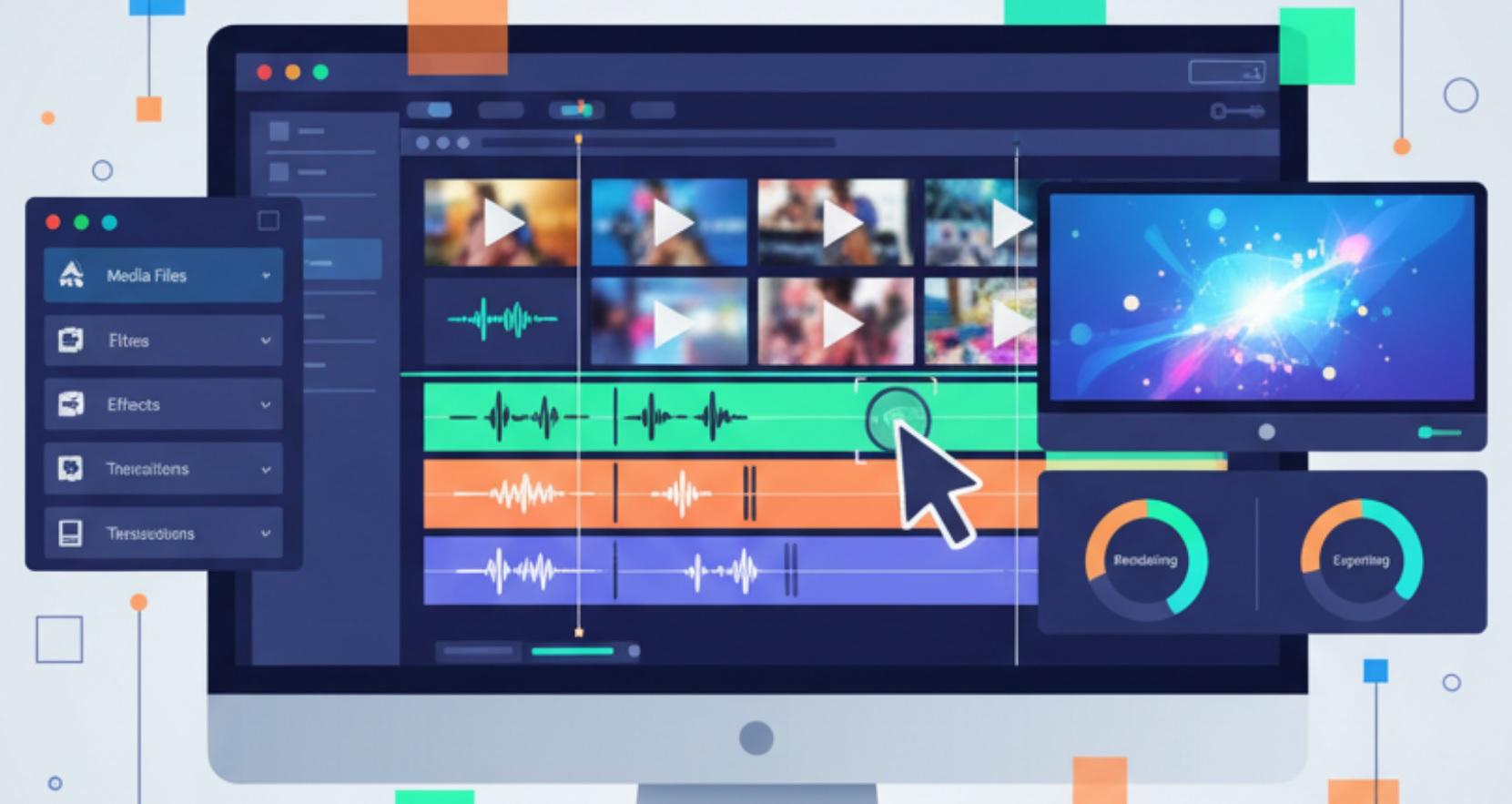
Editing video used to be something only professionals could do. Now, anyone with a laptop can cut clips, add music, and share polished videos online. But with so many programs - free, paid, simple, or complicated - it can be hard to know where to start.
You don't need fancy tools to make good videos. What matters is picking software that works with your skills, goals, and computer. This guide highlights the video editors real people use and recommend. All of them work on Windows or Mac, and most let you try them for free before buying.
How to Choose the Right Software
Before comparing features, ask yourself a few questions:
- Are you making short clips for TikTok or YouTube videos?
- Do you need to edit 4K footage from a drone or DSLR?
- Will you add voiceovers, color correction, or special effects?
- Is your computer older or low on memory?
Your answers will point you toward the right tool. A beginner making vacation reels doesn't need the same software as someone editing a documentary. The best program is the one you'll actually use-not the one with the most buttons.
Best for Beginners: iMovie (Mac Only)
If you own a Mac, iPhone, or iPad, you already have access to iMovie. It's free, simple, and surprisingly powerful for basic projects. You can drag clips into a timeline, add transitions, overlay music, and even create movie-trailer templates in minutes.
Pros:
- Completely free for Apple users
- Intuitive drag-and-drop interface
- Supports 4K video and basic color adjustments
- Exports directly to YouTube, iCloud, or your camera roll
- Runs smoothly even on older Macs
Cons:
- Only available on Apple devices
- Limited audio controls and effects
- No support for advanced features like keyframing or multi-cam editing
You'll love iMovie if you're new to editing or just want to stitch together family moments, travel clips, or school projects without frustration.
Best Free Option for Windows and Mac: DaVinci Resolve
Most free software feels limited. DaVinci Resolve doesn't. It's used by Hollywood colorists and indie filmmakers alike-and the free version includes almost everything you need to edit, color-grade, add sound, and even create visual effects.
Pros:
- Professional-grade tools at no cost
- Best-in-class color correction (its original purpose)
- Supports 4K, 60fps, and multi-track editing
- Includes Fairlight for advanced audio editing
- Works on Windows, Mac, and even Linux
Cons:
- Steep learning curve for beginners
- Requires a decent computer-older laptops may struggle
- Interface feels complex at first glance
Don't be scared off by its pro reputation. Start with the "Cut" page-a simplified workspace designed for fast edits. As you grow, you can explore color, audio, and effects tabs. For serious creators on a budget, this is the most powerful free option available.
Best for YouTube and Social Media: Adobe Premiere Rush
Premiere Rush is Adobe's answer to mobile-first creators. It's built for people who shoot on phones and want to edit quickly for Instagram, TikTok, or YouTube Shorts. The interface is clean, templates are modern, and syncing across phone and computer is seamless.
Pros:
- Simple timeline with drag-and-drop ease
- Auto-captions and trendy motion graphics
- Syncs projects between phone, tablet, and desktop
- One-click export to major platforms
- Good for vertical (9:16) and square (1:1) videos
Cons:
- Limited to 4K at 30fps in the free version
- Advanced features require a Creative Cloud subscription ($10/month)
- Not suited for long-form or complex projects
If your content lives on social media and you value speed over precision, Rush gets you from raw clip to published post faster than almost anything else.
Best All-Around Professional Tool: Adobe Premiere Pro
Premiere Pro is the industry standard for a reason. It works with nearly every camera format, supports complex timelines, and integrates smoothly with After Effects, Photoshop, and Audition. Whether you're editing a wedding video or a feature film, this software can handle it.
Pros:
- Unmatched format compatibility
- Powerful multi-cam and proxy editing
- Huge library of plugins and presets
- Regular updates and strong community support
- Works on both Windows and Mac
Cons:
- Subscription-only-no one-time purchase ($21/month)
- Can feel overwhelming for beginners
- Demands a strong computer for smooth 4K editing
You don't need to be a pro to use Premiere Pro. Many YouTubers and small businesses rely on it because it scales with your skills. Start simple, and add advanced techniques as you go.
Best for Mac Pros: Final Cut Pro
Apple's professional editor is fast, stable, and optimized for Mac hardware. It uses magnetic timelines-no overlapping clips or track confusion-which many editors find more intuitive than traditional layouts. Final Cut also handles 4K and 8K footage with ease, thanks to tight integration with Apple Silicon chips.
Pros:
- One-time purchase ($299)-no monthly fees
- Extremely fast rendering and playback on Macs
- Clean, modern interface with customizable workflows
- Excellent organization tools for large projects
- Includes Motion and Compressor for effects and exporting
Cons:
- Mac only-no Windows version
- Smaller plugin ecosystem than Premiere Pro
- Learning resources not as widespread
If you're on a Mac and plan to edit regularly-whether for work or passion-Final Cut Pro offers the best long-term value among pro tools.
Best Budget Pick for Windows: Filmora
Filmora strikes a smart balance between simplicity and capability. It's not free, but it's affordable (often on sale for under $50/year), and it includes hundreds of effects, transitions, and music tracks. The interface is beginner-friendly, but you can still dive into keyframing, green screen, and audio ducking if needed.
Pros:
- Easy to learn with guided tutorials
- Rich library of built-in assets (no extra downloads)
- Supports 4K editing and screen recording
- One-click export presets for every platform
- Performs well on mid-range computers
Cons:
- Watermark in free version
- Some advanced features feel "locked behind" premium effects
- Not ideal for very long or complex timelines
Students, small business owners, and hobbyists love Filmora because it removes friction. You spend less time figuring out the software and more time telling your story.
What to Avoid
Stay away from "free" editors that bombard you with pop-ups, watermarks, or forced upgrades. Many look professional but limit export quality or speed unless you pay.
Also skip software that hasn't been updated in over a year. Video formats change fast-older programs may not support HEVC, H.265, or vertical video properly.
And don't assume expensive means better. If you only make 2-minute vlogs, Premiere Pro's $250/year cost is overkill. Match the tool to your actual needs.
System Requirements Matter
Even the best software runs poorly on weak hardware. Before installing, check your computer's specs:
- RAM: 8GB is the minimum; 16GB or more is better for 4K.
- Storage: Use an SSD, not a slow hard drive. Video files are huge.
- Graphics card: Helps with effects and playback-especially on Windows.
- OS: Make sure your operating system is up to date.
DaVinci Resolve and Premiere Pro will crawl on an old laptop. iMovie and Filmora are more forgiving. Choose software that respects your machine's limits.
Comparison Table: Best Video Editing Software in 2026
| Software | Best For | Price | Learning Curve |
|---|---|---|---|
| iMovie | Mac beginners, family videos | Free | Very easy |
| DaVinci Resolve | Serious creators on a budget | Free (Studio version: $295) | Steep |
| Adobe Premiere Rush | Social media creators | Free (with limits); $10/month full | Easy |
| Adobe Premiere Pro | Professionals, YouTubers, filmmakers | $21/month | Moderate to steep |
| Final Cut Pro | Mac-based pros and enthusiasts | $299 one-time | Moderate |
| Filmora | Windows users, small businesses | $49-$80/year | Easy to moderate |
Conclusion
Always try before you buy. Most paid software offers a free trial. Use it to edit a real project, not just click around. See how it feels after 30 minutes, not just 3.
Watch beginner tutorials on YouTube for your top two choices. If the instructor makes it look easy and fun, that's a good sign.
You don't need to master every tool. Start simple. Edit often. Upgrade only when your current software holds you back. That's how real creators grow.


