




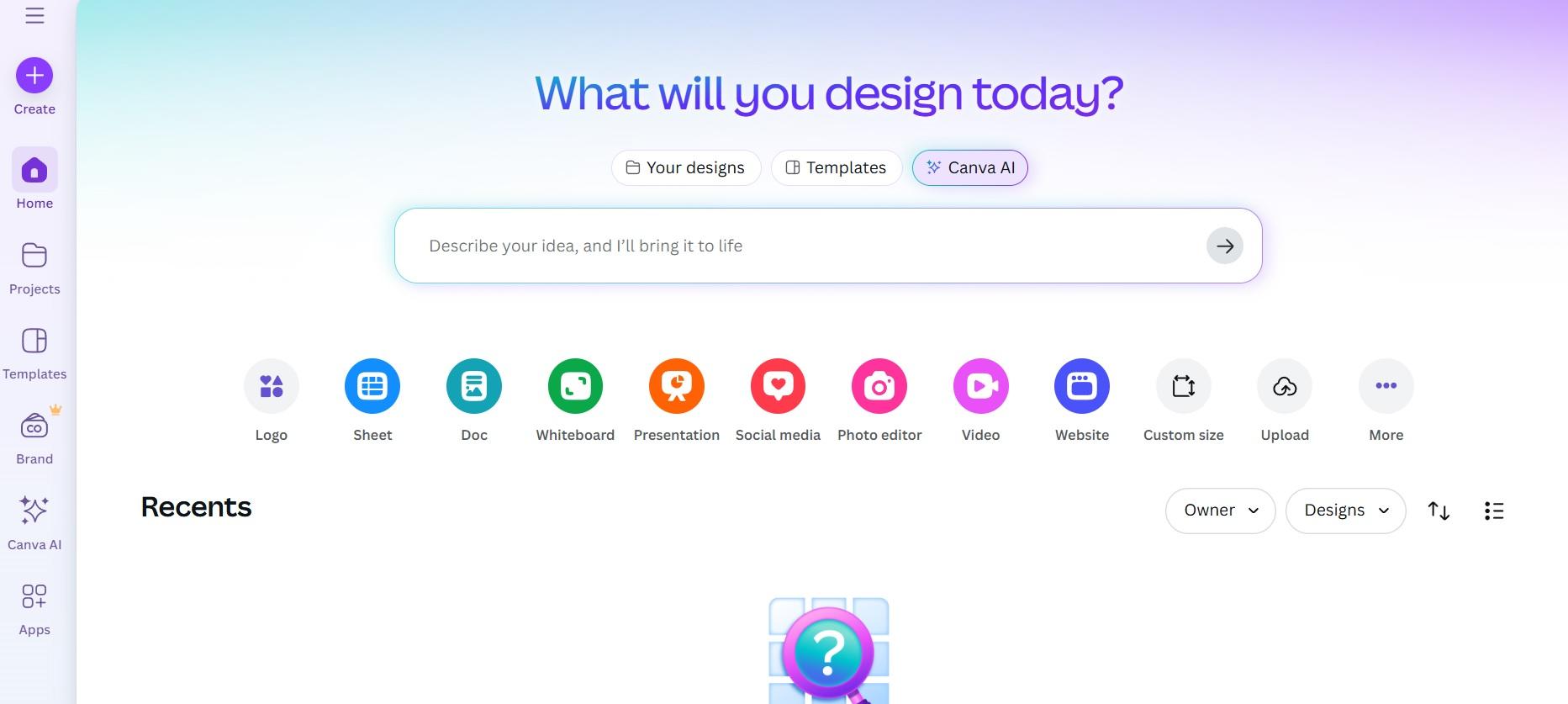
If you've ever needed to make a flyer, social media post, or simple presentation, chances are someone told you to "just use Canva." It's everywhere - in schools, small businesses, nonprofits, and even big companies. But is it actually good, or is it just popular because it's free and easy?
You don't need design experience to use Canva - that's the whole point. It's made for people who want something that looks professional without spending hours learning complicated software. After using it regularly for everything from Instagram stories to event posters, here’s a real look at what Canva does well and where it falls short.
What Is Canva, Anyway?
Canva is an online design tool you use right in your web browser or through its mobile app. You don't install anything (unless you want the desktop version). Everything saves automatically to the cloud, so you can start a project on your laptop and finish it on your phone.
It works with a drag-and-drop system. Want to add text? Click a button. Want to change the background? Pick from thousands of photos or colors. Need a logo? There's a template for that too. You move elements around with your mouse or finger, and Canva helps you align everything neatly.
Millions of people use it daily because it removes the guesswork from design. You don't need to know what "kerning" or "CMYK" means. You just pick a layout, swap in your words and images, and download the result.
What You Can Create with Canva
The list is long. Canva isn't just for social media. Here are some of the most common things people make:
- Social media posts (Instagram, Facebook, TikTok, LinkedIn)
- Stories and Reels templates
- Presentations and slide decks
- Flyers, posters, and banners
- Business cards and letterheads
- Resumes and cover letters
- Simple videos and animations
- Printables like calendars, planners, and invitations
- Basic websites (with Canva Websites)
You can even collaborate with others in real time-like Google Docs for design. Team members can leave comments, suggest edits, or work on the same file together.
How Easy Is Canva to Use?
Extremely easy. If you've used any app on your phone, you'll figure out Canva in minutes. The interface is clean, with clear icons and a simple left-side menu. Templates are organized by category, so you never feel lost.
When you start a new design, you pick a size first-like "Instagram Post" or "A4 Flyer." Then you see dozens (sometimes hundreds) of ready-made layouts. Click one, and it loads instantly. From there, you click any text box to change the words, click any image to replace it, and use the top toolbar to adjust colors, fonts, or effects.
Helpful features like "Magic Resize" let you turn one design into multiple formats. Made an Instagram post? With one click, Canva can adapt it for Facebook, Twitter, or a story-saving you from starting over.
Even the mobile app works smoothly. You can take a photo, drop it into a template, add text, and share it-all from your phone in under five minutes.
Free vs. Pro: What's the Difference?
Canva has a free plan that's surprisingly powerful. But there's also a paid "Pro" version (and a Teams option for groups). Here's what you get with each:
Free Plan
The free version includes:
- Access to thousands of templates
- Basic photo editing tools (crop, filter, brightness)
- Over 250,000 free stock photos, videos, and graphics
- 1GB of cloud storage
- Ability to upload your own images and logos
- Basic collaboration (view-only sharing)
For students, teachers, and casual users, this is often enough. You can make great-looking designs without paying a cent.
Canva Pro (Paid)
For $12.99/month (or less if paid yearly), Pro unlocks:
- Access to 100+ million premium stock photos, videos, and audio clips
- Brand Kit: Save your colors, fonts, and logo for one-click consistency
- Background Remover: Instantly delete photo backgrounds with one click
- Magic Resize: Convert designs to multiple sizes automatically
- 100GB cloud storage
- Full collaboration: Edit together in real time
- Content Planner: Schedule social posts directly to Instagram, Facebook, etc.
- Ad-free experience
If you run a small business or create content weekly, Pro is worth the price. The time saved alone justifies the cost.
Pros and Cons of Using Canva
No tool is perfect. Here's a balanced look at Canva's strengths and weaknesses.
Pros
- Beginner-friendly: Zero design skills needed. Intuitive from the start.
- Huge template library: Almost every common design need is covered.
- Fast results: Create a polished post in 5-10 minutes.
- Works on any device: Browser, phone, or desktop app-same experience.
- Great for teams: Real-time collaboration makes group projects easy.
- Regular updates: New features like AI tools, video editing, and websites keep it fresh.
Cons
- Limited customization: You're working inside templates. Going fully custom is harder.
- Overused designs: Popular templates get used everywhere-your post might look like someone else's.
- Not for print pros: No CMYK support or advanced typography controls.
- Free version has limits: Many best photos and graphics require Pro.
- Internet required: You can't work offline unless you use the desktop app (which still needs occasional sync).
Canva isn't meant to replace Adobe Photoshop or Illustrator. It's for quick, effective visuals-not pixel-perfect professional print work.
Who Is Canva Best For?
Canva shines for specific types of users:
- Small business owners: Create ads, menus, or social content without hiring a designer.
- Teachers and students: Make worksheets, presentations, or classroom posters fast.
- Nonprofits and volunteers: Produce flyers or donation graphics on a tight budget.
- Content creators: Design consistent Instagram or YouTube thumbnails weekly.
- Office workers: Build reports, infographics, or internal newsletters easily.
If you need total creative freedom or work in high-end branding, you'll eventually outgrow Canva. But for 90% of everyday design tasks, it's more than enough.
Real-World Experience: What It's Like to Use Daily
Using Canva feels like having a helpful assistant. You never stare at a blank screen wondering where to start. The templates give you a strong foundation, and the drag-and-drop tools let you tweak until it feels right.
One standout feature is the "Text to Image" tool (available in Pro). Type a description like "a calm beach at sunset with palm trees," and Canva generates a realistic image. It's not perfect, but it's great for quick blog headers or mood boards.
The video editor is also surprisingly capable. You can trim clips, add music, insert text animations, and even record voiceovers-all in the browser. It won't replace Final Cut Pro, but it's perfect for short social videos.
Another win: the "Brand Hub" in Pro. Once you save your brand colors and fonts, every new design starts with them. No more guessing if your blue is #2A5BDA or #2B5CDB.
On the downside, some advanced users miss features like layer grouping or vector editing. And while you can export in PNG, JPG, PDF, or MP4, you can't export editable source files like .PSD or .AI.
Bottom Line
Canva takes the intimidation out of design. You don't need talent - just a clear idea of what you want to communicate.
The free plan is generous enough for occasional use. If you create content weekly or run a business, the Pro plan pays for itself with saved time and better-looking designs.
Just don't expect it to do everything. Canva shines at what it's meant for: fast, accessible design that's good enough for the real world.
Canva Free vs. Pro: Quick Comparison
| Feature | Free Plan | Pro Plan |
|---|---|---|
| Templates | Yes (thousands) | Yes (all, including premium) |
| Stock Photos & Videos | 250,000+ free | 100+ million (including premium) |
| Brand Kit | No | Yes (save colors, fonts, logo) |
| Background Remover | No | Yes (one-click) |
| Magic Resize | No | Yes |
| Cloud Storage | 1GB | 100GB |
| Collaboration | View-only | Full editing together |
| Social Scheduler | No | Yes |
| Price | $0 | $12.99/month (or $119.99/year) |
For most people starting out, the free version is more than enough. But if you rely on design for work or business, Pro unlocks serious efficiency.
Canva won't turn you into a graphic designer overnight. But it will help you look like one fast, affordably, and without stress.


